
Setting up and starting a battle
This guide covers the parts of the GUI you use before a battle starts:
- choosing a game type
- selecting and booting bots
- checking which bots have joined
- configuring battle rules
- starting the battle in normal or paused mode
Starting a battle
The primary function of the GUI is battle creation and bot selection:
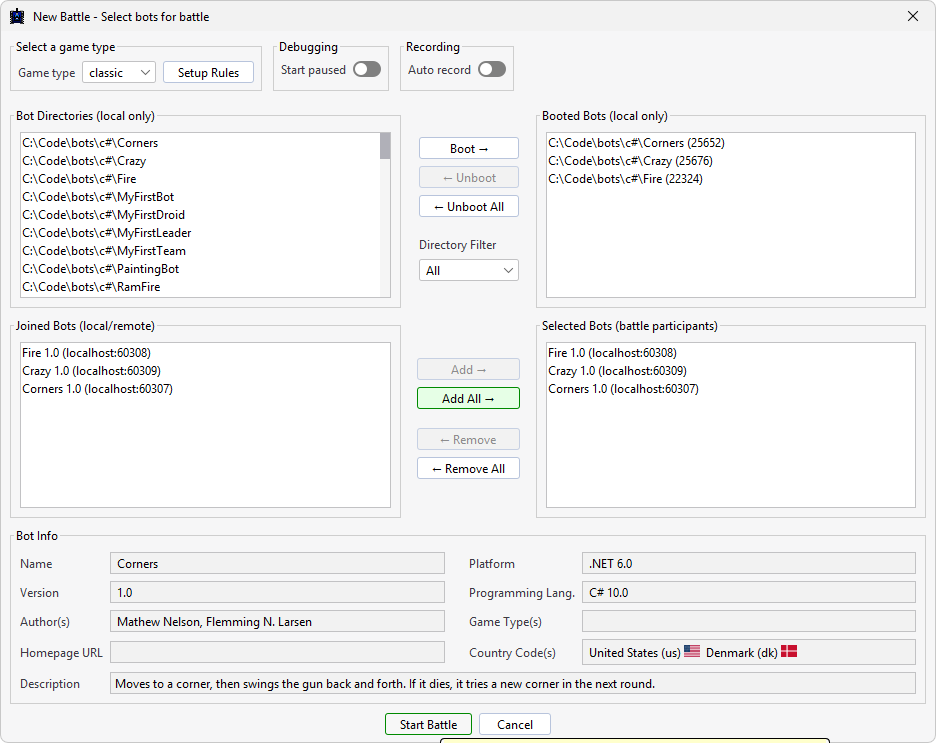
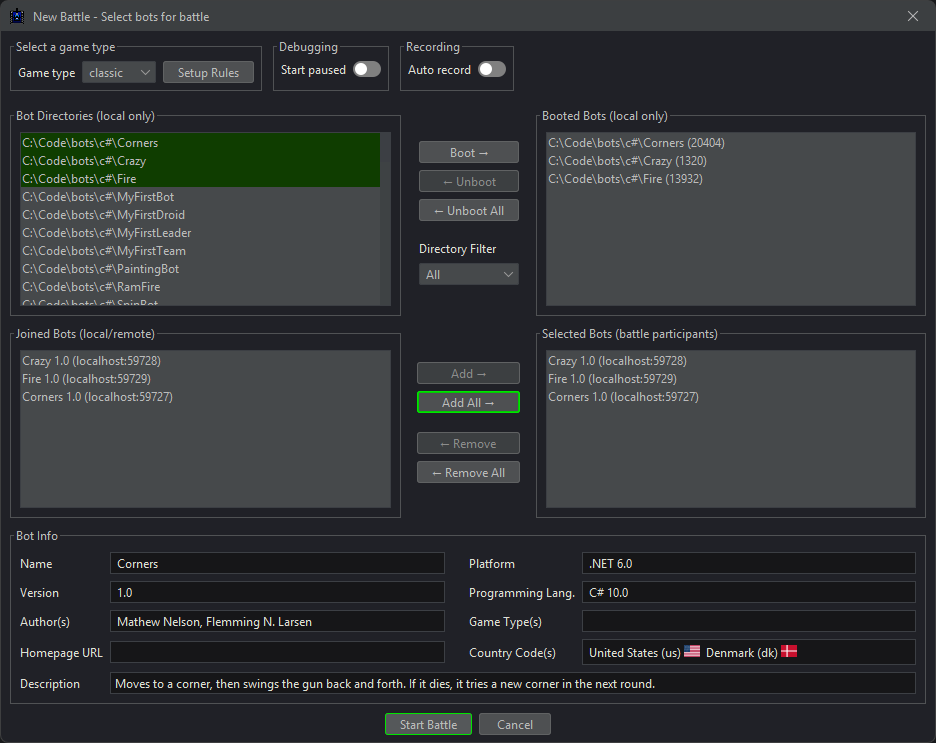
The window is organized into four key lists:
- Bot Directories - available bot types from configured local directories
- Booted Bots - currently running bot instances launched locally
- Joined Bots - bots connected to the server locally or remotely
- Selected Bots - bots chosen for the next battle
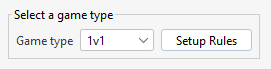
At the top, the Select game type dropdown lets you choose the game type, and the Setup Rules button opens the rule configuration dialog.
Next to the game type selector is the Recording toggle for automatic battle recording.
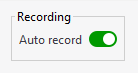
When enabled, each battle is recorded automatically. For details, see Recording and replaying battles.
The Debugging group contains the Start paused toggle. When enabled, the battle enters debug mode immediately from turn 1, which is useful when you want to step through the first turns without enabling debug mode manually after the battle has started.
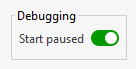
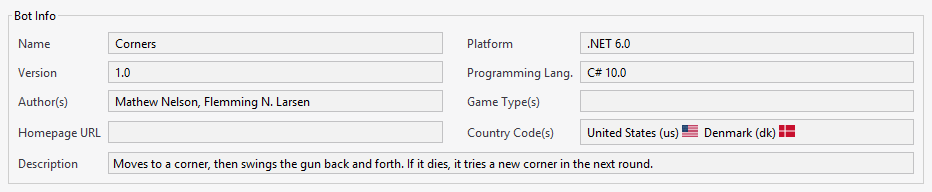
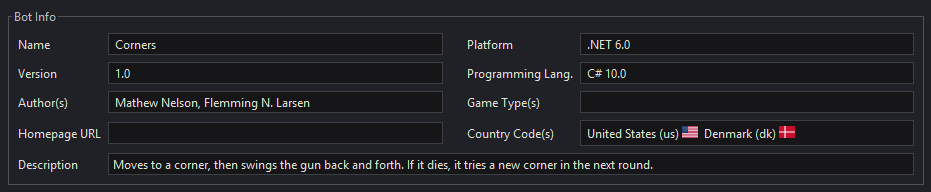
The bottom panel displays detailed bot information when you select entries from the Bot Directories list:
Bot Directories
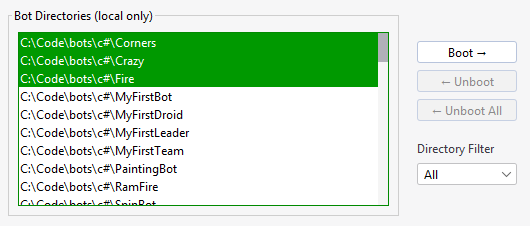
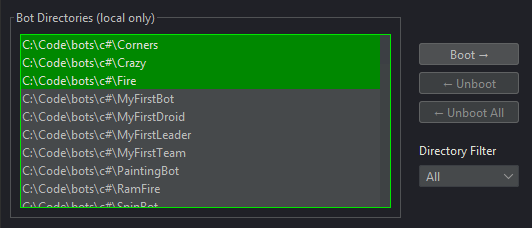
The Bot Directories section lists all detected bot types from your configured local directories and shows the absolute file path for each bot.
If no directories are configured, the GUI prompts you to add at least one bot root directory:
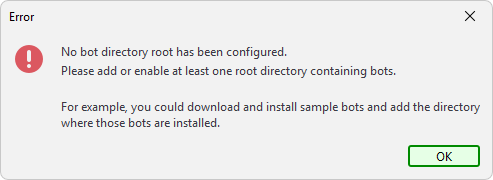
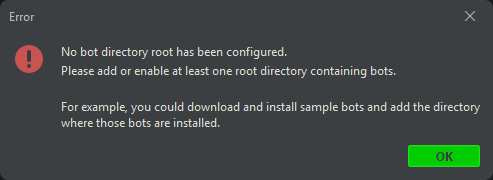
To get started quickly, download and extract the sample bot packages, then add their parent directory through Config → Bot Root Directories.
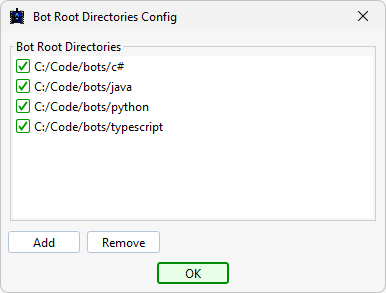
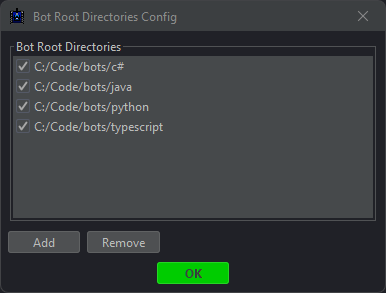
For sample bot setup, see Installing sample bots.
Booted Bots
The Booted Bots section shows bots launched through the GUI's built-in booter:
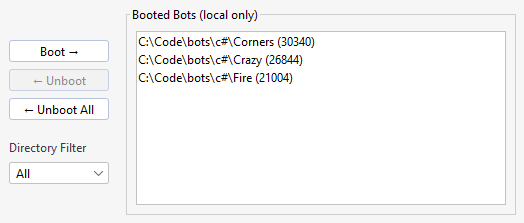
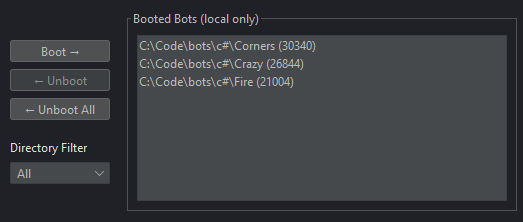
Multiple instances of the same bot type can be booted, which makes it easy to run battles with duplicate bot entries.
Each entry shows the bot file path and process ID. Use Boot to launch a bot process and Unboot to terminate the selected process.
Boot progress dialog
When booting bots from Bot Directories, the GUI shows a progress dialog while each bot connects to the server:
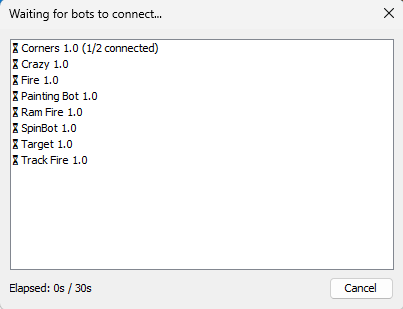
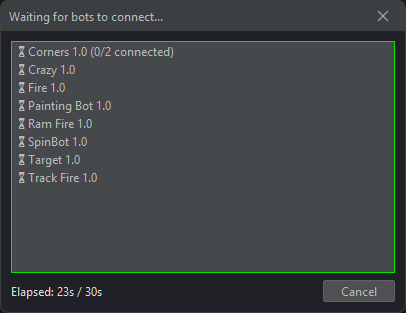
The dialog shows:
- Per-bot status for each expected bot identity
- Elapsed time compared with the maximum wait time
- A Cancel button that aborts the boot process and kills all launched bot processes
When all expected bots have connected, the dialog closes automatically and the bots appear in the Joined Bots panel.
If the timeout is reached before all bots connect, the status area is replaced with an error listing the pending bots, and Retry and Cancel buttons are shown. Retry resets the timer and continues waiting. Cancel stops all booted processes.
Joined Bots
The Joined Bots section lists every bot connected to the server, whether local or remote:
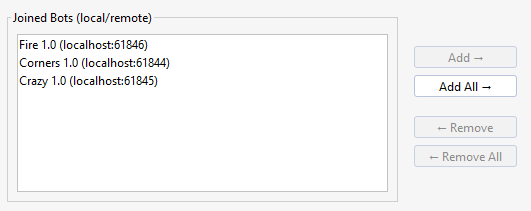
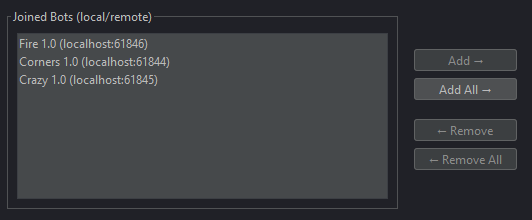
Each entry shows the bot IP address and port, which helps distinguish between multiple instances. File paths are not shown because the server tracks WebSocket connections and bot handshake information rather than local filesystem paths.
Selected Bots
The Selected Bots section lists the bots chosen for the upcoming battle:
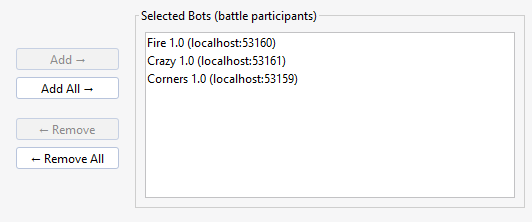
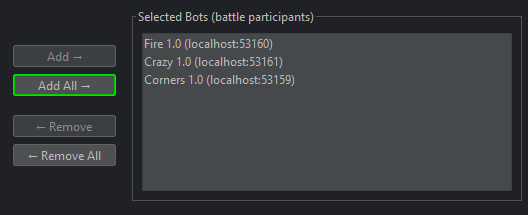
The Start Battle button becomes available once the selected bots satisfy the minimum participant count defined by the current game type.
Setup Rules
Customize rules for each game type with the Setup Rules dialog:
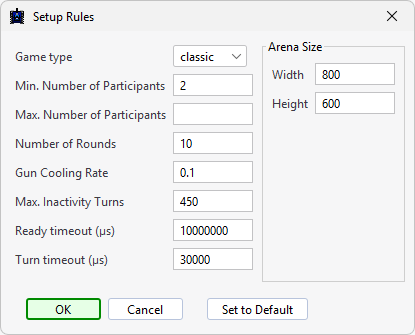
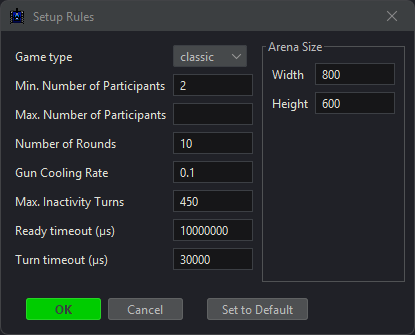
Available game types include classic, melee, 1v1, and custom.
| Rule | Description |
|---|---|
| Min. Number of Participants | The minimum number of participants required to play the battle. |
| Max. Number of Participants | The maximum number of participants allowed to play the battle. |
| Number of rounds | The number of rounds before the game ends and the results are shown. |
| Gun cooling rate | The decrease of heat per round. Higher values make the gun cool faster. |
| Max. Inactivity Turns | The number of turns allowed where no bots are hit before the remaining bots are punished by losing energy each turn. |
| Ready timeout | The maximum number of microseconds allowed before the server must receive a Bot Ready message from the bot. Otherwise, the bot is automatically kicked from the battle. |
| Turn timeout | The maximum number of microseconds allowed before the server must receive a Bot Intent message from the bot. Otherwise, the bot skips the turn. ^skip-turn |